Sometimes you need to keep some information private. Zavala can do this by Locking an Outline. The functions associated with Locking are in the File menu, the Documents context menu, and the Editor’s More… menu.
Add Lock
This is the function that Locks an Outline. When an Outline is Locked it is encrypted on the filesystem using industrial grade encryption (AES GCM with a 256bit key).
Only the content, the Rows and Images in the Outline are encrypted. If we encrypted the Title of the Outline or its Tags, we wouldn’t be able to access or find the Outline. Other metadata, like the Updated Date also are not encrypted.
If the Outline is in the iCloud Account, it will be synced using the same encryption. Not even Apple can access the Outline records in iCloud when encrypted like this. You will want to Lock the Outline before adding Rows if it is a sensitive document because iCloud syncing starts almost immediately.
Unlock Outline
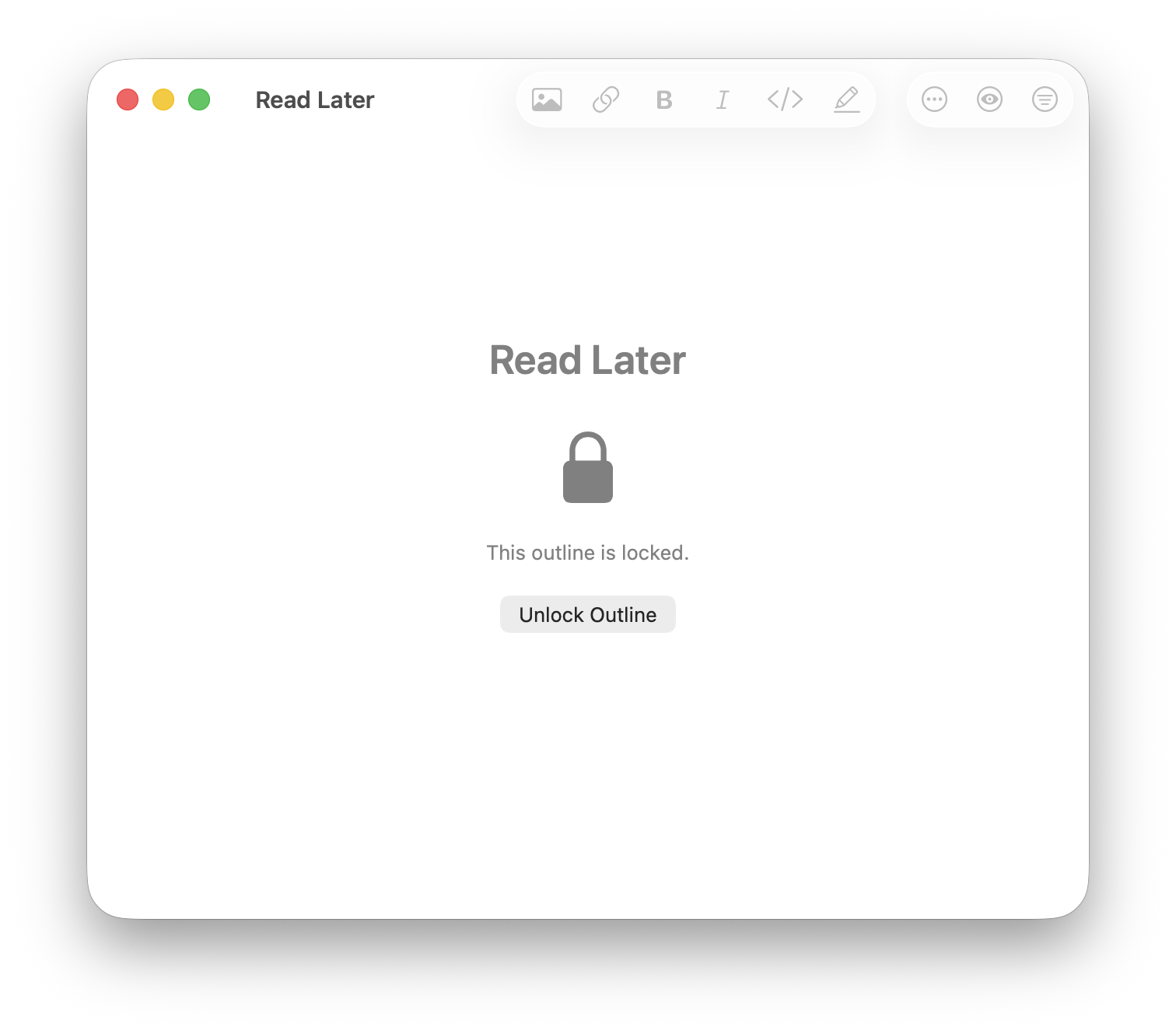
When an Outline is Locked, you won’t be able to see its contents. Instead you
will see a screen with a button on it, Unlock Outline. To access an Outline,
you need to provide some kind of authentication. This could be your system
password, Face ID, Touch ID, etc…
Lock Outline
This function will make the Outline inaccessible again. You will need to Unlock the Outline again to access it. If you close Zavala or leave Zavala in the background for too long, the Outline will automatically be locked for you.
Remove Lock
This does the opposite of Add Lock. It will unencrypt the Outline and if it is an iCloud Outline, syncing will be done in plain text again.
Shortcut Support
Locked Outlines cannot be accessed or manipulated using Shortcuts. If we allowed Shortcuts to access Locked Outlines, malicious actors could exfiltrate Locked Outline data using Shortcuts. This means that if you back up your Account using the Archive Account Shortcut, any Locked Outlines won’t be included.